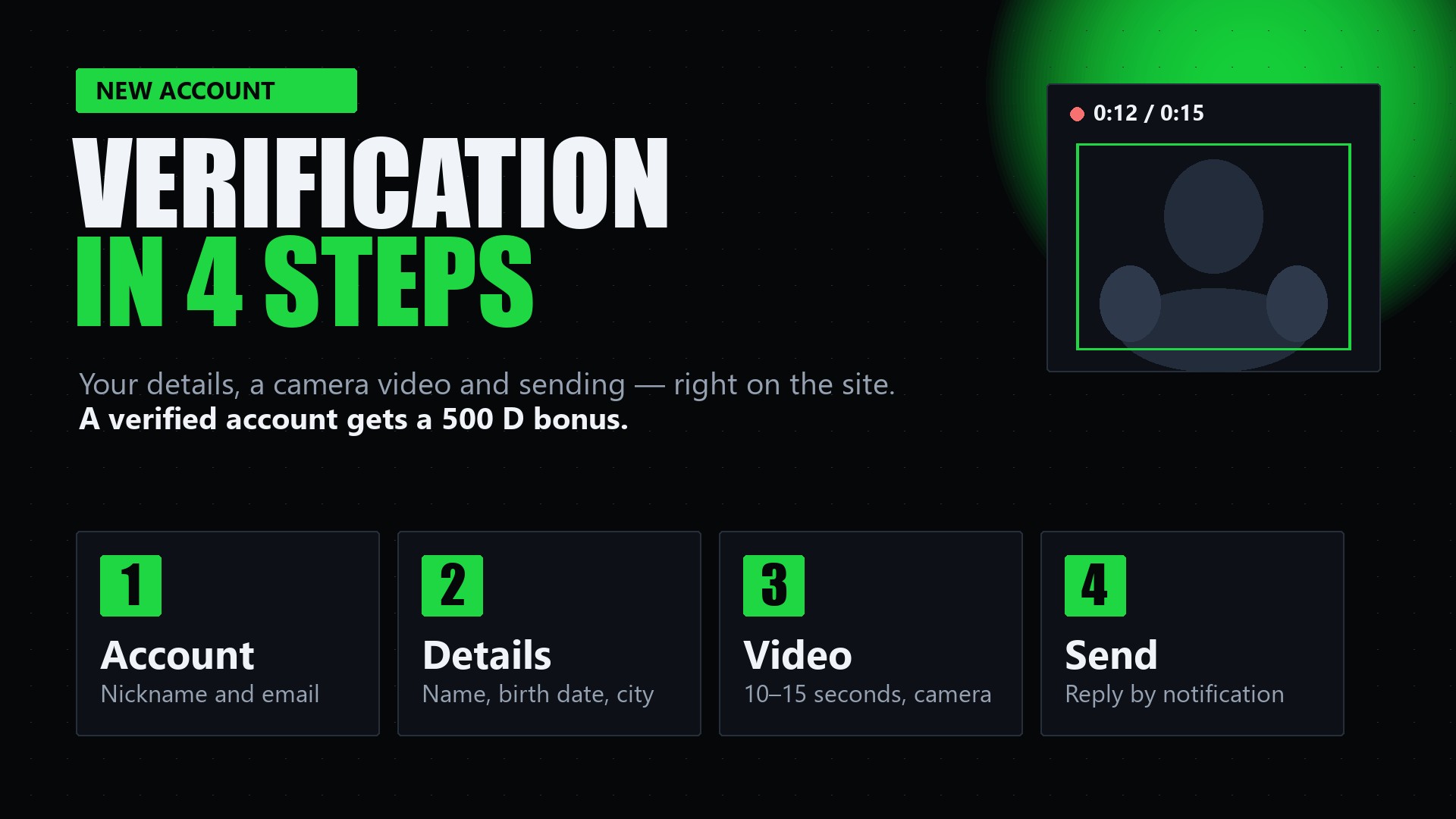
Just signed up on DEAFESG? To make your account verified, you need to go through verification once. It is four short steps right on the site and takes a few minutes. Here is what to prepare and what to do.
What you need
- a computer or phone with a camera;
- a few minutes and good lighting — your face and hands must be clearly visible;
- your real first and last name, date of birth, country and city.
Four steps
- Account. On the sign-up page enter a nickname, email and password (repeat it) and pass the "I am not a robot" check. The account is created and the site takes you straight to the next step.
- Details. Enter your first and last name, date of birth, country and city. First name, last name and city are written in Latin letters, as in a passport. A Telegram contact is optional. Tick the consent to process your data for account verification.
- Video. Record a 10–15 second video right in your browser (details below).
- Send. Check your details and video and press "Send for review". The decision arrives as a notification on the site.
Your details and the recorded video are saved immediately: if you close the page, come back later and continue from the same place.
How to record the video
Press "Turn on camera" and allow access in the browser. Then press "Start recording": you can stop after 10 seconds, and at the 15th second the recording stops on its own. Sound is not recorded. If something went wrong, you can retake the video before sending.
Your face and hands must be in the frame. In the video, tell us about yourself in sign language or on a sheet of paper, so it is clear:
- first and last name;
- date of birth;
- country and city.
Also show your nickname in sign language and that you are deaf or hard of hearing.
If your browser cannot record video on the page, film a clip with your phone camera (10–15 seconds) and choose the file at the same step.
What you get
- A verified account and the verification badge.
- Access to linking game accounts in "My games" and to tournaments.
- A 500 D bonus for the first confirmed verification (once).
What next
When the decision is made, a notification appears on the site. If your details or video did not fit, you will see the reason and can go through the steps again.
Already registered but not yet verified? Open "Settings → Verification": the same four steps are there.